Hello React Navigation
In a web browser, clicking a link pushes a page onto the browser's history stack, and pressing the back button pops the page from the stack, making the previous page active again. React Native doesn't have a built-in history like a web browser - this is where React Navigation comes in.
The native stack navigator keeps track of visited screens in a history stack. It also provides UI elements such as headers, native gestures, and animations to transition between screens etc. that you'd expect in a mobile app.
Installing the native stack navigator library
Each navigator in React Navigation lives in its own library.
To use the native stack navigator, we need to install @react-navigation/native-stack:
 npm
npm yarn
yarn pnpm
pnpm bun
bun
npm install @react-navigation/native-stack@next
yarn add @react-navigation/native-stack@next
pnpm add @react-navigation/native-stack@next
bun add @react-navigation/native-stack@next
@react-navigation/native-stack depends on react-native-screens and the other libraries that we installed in Getting started. If you haven't installed those yet, head over to that page and follow the installation instructions.
Installing the elements library
The @react-navigation/elements library provides components designed to work with React Navigation. In this guide, we'll use components like Button from the elements library:
- npm
- yarn
- pnpm
- bun
npm install @react-navigation/elements
yarn add @react-navigation/elements
pnpm add @react-navigation/elements
bun add @react-navigation/elements
Creating a native stack navigator
We can create a native stack navigator by using the createNativeStackNavigator function:
- Static
- Dynamic
import * as React from 'react';
import { View, Text } from 'react-native';
import { createStaticNavigation } from '@react-navigation/native';
import {
  createNativeStackNavigator,
  createNativeStackScreen,
} from '@react-navigation/native-stack';

function HomeScreen() {
  return (
    <View style={{ flex: 1, alignItems: 'center', justifyContent: 'center' }}>
      <Text>Home Screen</Text>
    </View>
  );
}

const RootStack = createNativeStackNavigator({
  screens: {
    Home: createNativeStackScreen({
      screen: HomeScreen,
    }),
  },
});

const Navigation = createStaticNavigation(RootStack);

export default function App() {
  return <Navigation />;
}
createNativeStackNavigator takes a configuration object containing the screens to include, as well as various other options.
createNativeStackScreen takes a configuration object for a screen, where the screen property is the component to render (or a nested navigator, which we'll cover later).
createStaticNavigation takes the navigator and returns a component to render in the app. It should only be called once, typically at the root of your app (e.g., in App.tsx):
In a typical React Native app, the createStaticNavigation function should be only used once in your app at the root.
import * as React from 'react';
import { View, Text } from 'react-native';
import { NavigationContainer } from '@react-navigation/native';
import { createNativeStackNavigator } from '@react-navigation/native-stack';

function HomeScreen() {
  return (
    <View style={{ flex: 1, alignItems: 'center', justifyContent: 'center' }}>
      <Text>Home Screen</Text>
    </View>
  );
}

const Stack = createNativeStackNavigator();

function RootStack() {
  return (
    <Stack.Navigator>
      <Stack.Screen name="Home" component={HomeScreen} />
    </Stack.Navigator>
  );
}

export default function App() {
  return (
    <NavigationContainer>
      <RootStack />
    </NavigationContainer>
  );
}
createNativeStackNavigator returns an object with Screen and Navigator components. The Navigator should render Screen elements as children to define routes.
NavigationContainer manages the navigation tree and holds the navigation state. It must wrap all navigators and should be rendered at the root of your app (e.g., in App.tsx):
In a typical React Native app, the NavigationContainer should be only used once in your app at the root. You shouldn't nest multiple NavigationContainers unless you have a specific use case for them.
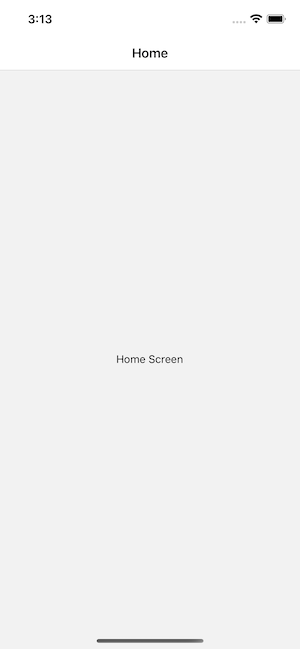
If you run this code, you will see a screen with an empty navigation bar and a grey content area containing your HomeScreen component (shown above). These are the default styles for a stack navigator - we'll learn how to customize them later.
The casing of the route name doesn't matter -- you can use lowercase home or capitalized Home, it's up to you. We prefer capitalizing our route names.
Configuring the navigator
We haven't passed any configuration to the navigator yet, so it just uses the default configuration.
Let's add a second screen and configure Home as the initial route:
- Static
- Dynamic
const RootStack = createNativeStackNavigator({
  initialRouteName: 'Home',
  screens: {
    Home: createNativeStackScreen({
      screen: HomeScreen,
    }),
    Details: createNativeStackScreen({
      screen: DetailsScreen,
    }),
  },
});
const Stack = createNativeStackNavigator();

function RootStack() {
  return (
    <Stack.Navigator initialRouteName="Home">
      <Stack.Screen name="Home" component={HomeScreen} />
      <Stack.Screen name="Details" component={DetailsScreen} />
    </Stack.Navigator>
  );
}
Now our stack has two routes: Home and Details. Routes are defined under the screens property - the property name is the route name, and the value is the component to render.
Here, the initial route is set to Home. Try changing initialRouteName to Details and reload the app (Fast Refresh won't pick up this change) to see the Details screen first.
Specifying options
Each screen can specify options such as the header title.
We can specify the options property in the screen configuration to set screen-specific options:
- Static
- Dynamic
const RootStack = createNativeStackNavigator({
  initialRouteName: 'Home',
  screens: {
    Home: createNativeStackScreen({
      screen: HomeScreen,
      options: {
        title: 'Overview',
      },
    }),
    Details: createNativeStackScreen({
      screen: DetailsScreen,
    }),
  },
});
const Stack = createNativeStackNavigator();

function RootStack() {
  return (
    <Stack.Navigator initialRouteName="Home">
      <Stack.Screen
        name="Home"
        component={HomeScreen}
        options={{
          title: 'Overview',
        }}
      />
      <Stack.Screen name="Details" component={DetailsScreen} />
    </Stack.Navigator>
  );
}
To apply the same options to all screens, we can use screenOptions on the navigator:
- Static
- Dynamic
const RootStack = createNativeStackNavigator({
  initialRouteName: 'Home',
  screenOptions: {
    headerStyle: { backgroundColor: 'tomato' },
  },
  screens: {
    Home: createNativeStackScreen({
      screen: HomeScreen,
      options: {
        title: 'Overview',
      },
    }),
    Details: createNativeStackScreen({
      screen: DetailsScreen,
    }),
  },
});
const Stack = createNativeStackNavigator();

function RootStack() {
  return (
    <Stack.Navigator
      initialRouteName="Home"
      screenOptions={{
        headerStyle: { backgroundColor: 'tomato' },
      }}
    >
      <Stack.Screen
        name="Home"
        component={HomeScreen}
        options={{
          title: 'Overview',
        }}
      />
      <Stack.Screen name="Details" component={DetailsScreen} />
    </Stack.Navigator>
  );
}
Passing additional props
- Static
- Dynamic
Passing additional props to a screen is not supported in the static API.
We can pass additional props to a screen with 2 approaches:
-
React context and wrap the navigator with a context provider to pass data to the screens (recommended).
-
Render callback for the screen instead of specifying a
componentprop:<Stack.Screen name="Home">
{(props) => <HomeScreen {...props} extraData={someData} />}
</Stack.Screen>warningReact Navigation applies optimizations to screen components to prevent unnecessary renders. Using a render callback removes those optimizations, so you'll need to use
React.memoorReact.PureComponentfor your screen components to avoid performance issues.
Setting up TypeScript
If you're using TypeScript, you need to tell React Navigation about your root navigator by declaring a module augmentation:
type RootStackType = typeof RootStack;

declare module '@react-navigation/core' {
  interface RootNavigator extends RootStackType {}
}
Here, RootStack is the root navigator we created earlier using createNativeStackNavigator. You can place this code just below the code where you created your root navigator.
Check out the Type checking with TypeScript guide for more details.
What's next?
Now that we have two screens, "How do we navigate from Home to Details?". That's covered in the next section.
Summary
- Static
- Dynamic
- React Native doesn't have a built-in API for navigation like a web browser does. React Navigation provides this for you, along with the iOS and Android gestures and animations to transition between screens.
createNativeStackNavigatoris a function that takes the screens configuration and renders our content.- Each property under screens refers to the name of the route, and the value is the component to render for the route.
- To specify what the initial route in a stack is, provide an
initialRouteNameoption for the navigator. - To specify screen-specific options, we can specify an
optionsproperty, and for common options, we can specifyscreenOptions.
- React Native doesn't have a built-in API for navigation like a web browser does. React Navigation provides this for you, along with the iOS and Android gestures and animations to transition between screens.
Stack.Navigatoris a component that takes route configuration as its children with additional props for configuration and renders our content.- Each
Stack.Screencomponent takes anameprop which refers to the name of the route andcomponentprop which specifies the component to render for the route. These are the 2 required props. - To specify what the initial route in a stack is, provide an
initialRouteNameas the prop for the navigator. - To specify screen-specific options, we can pass an
optionsprop toStack.Screen, and for common options, we can passscreenOptionstoStack.Navigator.